Reverse Worksheet
You will find that there are many sources of recipes available, but many fewer for formulas (i.e., listing baker’s percentages). So you will find yourself tasked with converting a recipe into a formula.
Generally speaking, this task is straightforward: start by determining the weight of the flour in the recipe and equating it to 100%. Then express each ingredient’s weight relative to that. Many US recipes (much less so in Europe, if at all) do not provide weights, but rather supply volumes (cups, tablespoons, etc.).
How to use
You start with a recipe that you find somewhere, and for each ingredient, you enter the description, preferment grouping code (Pre column), and the known measurement in the “Amount” column. See below for an example.
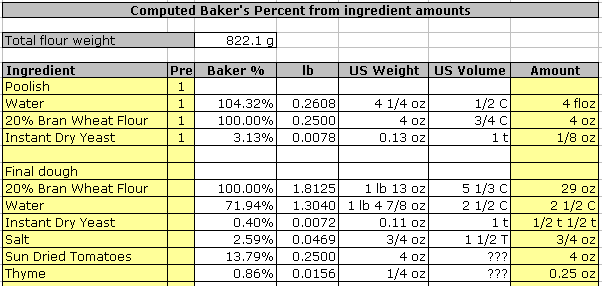
This example is for Dan Leader’s “Country Style Hearth Loaf with sun-dried tomatoes and thyme.” In most cases, I have entered the amount as specified in the original recipe (page 79). Note the use of various units, whether weights or volumes. The worksheet will accept both volume and weight measurements, but I suggest that if both are given, you use weights, as this will be most precise. Mixed use of weights and volumes within a single entry is not supported!
Note that the water in the poolish is specified in floz. That’s how it was in the recipe. The water for the final dough was also specified in floz, but to illustrate the worksheet’s capabilities, I entered it in cups, which requires a fraction. Fractions are accepted, but there must not be any blanks on either side of the slash. You may also enter decimal fractions, as illustrated for the thyme ingredient. Finally, I am showing (for instance, dry yeast in the final dough) that you may enter several measurements in a row, separated by blanks. Each will be converted, and the results will be added together. This is very useful for recipes listing an ingredient as “1 cup plus 1 tablespoon.” You would enter “1 C 1 T” for this.
Also, you may use the most common abbreviations. For example, “lb”, “lbs”, “pound”, and “pounds” are all accepted and equivalent.
Once all amounts are entered, you will find the computed total flour weight, in grams, on the top. At the bottom, you will see something like this:

Here you will find the formula total percentage, total weight in decimal pounds, total weight in pounds and ounces, and total weight in grams. Below all this is a button that, when clicked, transfers all relevant information from this worksheet to the “Recipe” worksheet.
Unknown ingredients
If you enter an ingredient for which there is no entry in the “Lookup” worksheet and you enter a weight, all will be fine. If, however, you only have a volume measurement, the weight cannot be calculated, and you will need to take additional action. You have several options:
- Fill a cup measure with the ingredient and weigh it. Then, add an entry in the “Lookup” worksheet and use
=CupGramsToSpecificGravity(x)in the specific gravity column, where “x” is the weight you found. - Determine the weight of a cup of the ingredient by looking it up on the Internet somewhere. Again, use the formula mentioned above.
Once the entry has been created, the volume amount will be correctly converted to a weight (subject to the accuracy and correctness of the value you entered). You could skip entering your findings in the “Lookup” worksheet, but it is not recommended, as each time you use this ingredient again, you will have to measure again.